
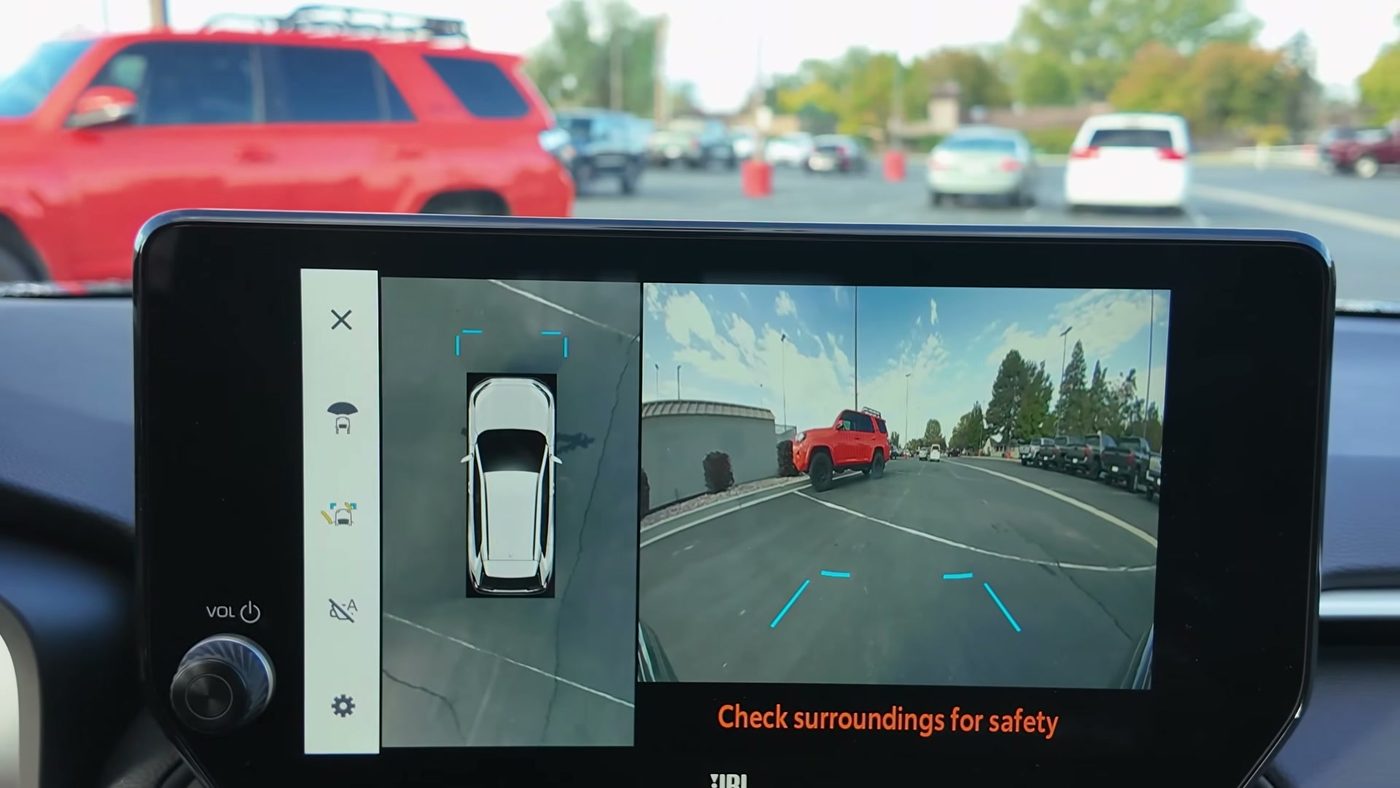
Here's the front camera screen in a 2025 RAV4 XSE in Drive, with the top-down view next to the front camera picture. The A button is the camera icon with the little A, second from the bottom of the strip on the left. In this picture the A button has a slash through it, and owners say the slash means auto mode is off, so the camera won't pop up on its own. From ToyotaDuo's video.
Quick picks
What the RAV4 360 camera is
So the RAV4's 360-degree camera is really four cameras working together. There's a camera in the grille under the Toyota emblem, one under each side mirror, and the backup camera above the rear license plate.
Basically, the RAV4 stitches the four camera pictures together into a top-down view of the car, as if you were looking down from a drone. The top-down view shows on the center touch screen, next to a normal front or rear camera picture. And the 360 camera is meant for low speeds, like parking, garages, tight drive-throughs, curbs and narrow roads.
Now something to note is that Toyota has used two names for the 360 camera. Toyota sold the 360 camera as the "Bird's Eye View Camera" from 2019 to 2022, and as the "Panoramic View Monitor" from 2023 on, including the 2026. But Toyota's owner's manuals call the 360 camera the "panoramic view monitor" in every one of those years. So if you own a 2019 to 2022 RAV4, you won't find the words "Bird's Eye View" in your manual.
Which RAV4 trims have the 360 camera
- 2019 to 2022: The 360 camera came only on the Limited (early on with the Advanced Technology Package), or with the XSE and Prime packages.
- 2023 to 2025: The 360 camera came on the XSE and Limited.
- 2026: The 360 camera is standard on the XSE, Woodland, Limited and GR SPORT. The 360 camera isn't available on the LE, SE or XLE Premium.
And I go through everything else in those packages in my Technology Package guide for 2019 to 2025 and my 2026 technology features guide.
The separate controls for the 360 camera, and what each one does
So there are several separate controls for the 360 camera, and owners mix them up all the time. Here's exactly what each control does.
- The camera switch (the VIEW button) is a physical button labeled VIEW with a camera icon. On a 2019 to 2025 RAV4, the VIEW button is on the lower dash, left of the steering wheel. On a 2026 RAV4, the VIEW button is on the center console, left of the shifter. Each press of the VIEW button moves to the next camera view. And after the last view, the next press closes the camera and takes you back to your map, radio, Apple CarPlay or Android Auto.
- The automatic display button (the "A" button) is a button on the touch screen, in the lower left of the camera screen. The A button only shows when you're in Drive or Neutral. When the A button is on, the front camera comes up by itself when you shift into Drive or Neutral, and every time you slow down below a set speed. So the A button is what makes the 360 camera pop up at every red light.
- The screen off button (the X) is on the camera screen. The X button closes the camera this one time only. The X button does not turn the A button off, so the camera comes back at your next stop or your next shift into Drive.
- Intuitive Parking Assist is Toyota's name for the bumper sensors that beep when you get close to something. On the 2026, Toyota calls the same sensors the "Parking Assist-Sensor." On a 2019 to 2025 RAV4, when a bumper sensor picks up something close in Drive or Neutral, the front camera pops up even with the A button off. Turning Intuitive Parking Assist off stops the sensor pop-up, but it also turns off the parking beeps and some camera views.
- The Cornering View setting (2023 to 2025) is in the camera's gear menu. With Cornering View on, the camera switches to a 3D angle that follows your steering. The cornering view comes up when you turn the steering wheel more than half a turn below about 6 mph in Drive.
- The View Under Vehicle setting (2023 to 2025) is also in the gear menu. The View Under Vehicle setting turns on a "see-through" picture of the ground under the car.
- The guide line switching button is on the camera screen, and the guide line switching button changes which colored guide lines are drawn on the picture.
- The display mode switching button is on the camera screen too. The display mode switching button changes the camera view while you stay in the same gear, like switching between a wide view and a narrow view.
How to tell which version of the 360 camera steps you need
So the steps depend on your RAV4's model year. There are three versions: 2019 to 2022, 2023 to 2025, and 2026.
- If your VIEW button is on the center console, just left of the shifter, you have a 2026 RAV4. On every 2019 to 2025 RAV4, the VIEW button is on the lower dash, left of the steering wheel.
- The gauge screen size doesn't change the camera steps. The gauge screen is the screen behind the steering wheel, and a 2023 to 2025 RAV4 has either a 7-inch or a 12.3-inch gauge screen. Basically, the 360 camera runs on the center touch screen, so the camera steps are the same with either gauge screen. The only gauge screen difference is where you turn the bumper sensors on and off, and I cover that in the steps below.
- The RAV4 Prime works like the regular RAV4 of the same year. Owners of the 2020 to 2024 Prime show the same camera screens as the regular RAV4. And something to note is that the Prime has its own multimedia manual, which I haven't gone through, so I can't fully confirm every Prime screen matches.
The speeds where the RAV4 360 camera works
Now the speeds are different for each version of the RAV4, and a lot of sites mix them up. These are the speeds from Toyota's owner's manuals.
| Model years | VIEW button shows the front camera up to | A button pops the camera up below | Zoom works below |
|---|---|---|---|
| 2019 to 2022 | About 7 mph (12 km/h) | About 6 mph (10 km/h) | About 7 mph |
| 2023 to 2025 | About 12 mph (20 km/h) | About 6 mph (10 km/h) | About 7 mph (12 km/h) |
| 2026 | About 12 mph (20 km/h). Above that, a press of VIEW shows the camera for about 8 seconds. | About 12 mph (20 km/h) or less | The 2026 manual doesn't give a speed |
And keep in mind that dealer and owner videos give other numbers, like 5 mph, 7 mph or 15 mph. But I'd go with the manual numbers above, because those come from Toyota.
How to use the 360 camera on a 2019 to 2022 RAV4 (Bird's Eye View Camera)
So on a 2019 to 2022 RAV4, the VIEW button is on the lower part of the dash, left of the steering wheel. The VIEW button sits in the row of small switches with the auto high beam, windshield de-icer, heated steering wheel and power liftgate switches. Toyota's 2019 and 2020 Quick Reference Guides call the VIEW button the "Bird's Eye View Camera ON/OFF switch."
How to bring up the 360 camera on a 2019 to 2022 RAV4
- Turn the car on. The VIEW button only works with the power switch on.
- In Park, press the VIEW button. You'll see the "moving view," where the camera slowly circles around a computer drawing of your RAV4. Or you'll see the "see-through view," which looks out through the car from the driver's seat. Tap the display mode switching button to swap between those two views. The pause button stops the circling, and pressing VIEW again takes you back to your previous screen.
- In Drive or Neutral, at about 7 mph or less, press the VIEW button. The first press shows the wide front camera next to the top-down view. The second press shows the side views, which look down both sides of the car from the mirror cameras, with lines for the car's width and front tires. The third press closes the camera.
- Shift into Reverse, and the camera comes on by itself with the rear camera next to the top-down view. The display mode switching button moves between the "wide rear view" and the normal "rear view."
- To zoom in, tap one of the four corners of the top-down view while the front or rear split view is showing. Tap again to go back. Zoom only works below about 7 mph.
- To match the car drawing to your paint color, tap the body color button from the moving view or the see-through view, and pick your color.
How to stop the 360 camera from popping up on a 2019 to 2022 RAV4
- Bring up the front camera. Shift into Drive and press the VIEW button, or just wait for the camera to pop up on its own as you slow down.
- Find the A button in the lower left of the camera screen. When the A button is on, the light on the A button is lit.
- Tap the A button so its light goes off. Now the camera won't come up on its own when you shift into Drive or slow below about 6 mph.
- To turn auto mode back on, bring up the front camera with the VIEW button and tap the A button so its light comes back on.
But keep in mind that the 2019 to 2022 camera will still pop up when the front bumper sensors detect something ahead. I explain that in the section on why the camera still pops up.
How to use the 360 camera on a 2023 to 2025 RAV4 (Panoramic View Monitor)
So on a 2023 to 2025 RAV4, the VIEW button is in the same spot as before. Basically, the VIEW button is on the lower dash, left of the steering wheel. The VIEW button sits in the row with the instrument panel light dial, auto high beam, windshield de-icer, heated steering wheel and power liftgate switches. The VIEW button is the fourth button from the left. And on cars with the 12.3-inch gauge screen, the ODO/TRIP button sits in that same row.
How to bring up the 360 camera on a 2023 to 2025 RAV4
- Make sure you're going about 12 mph or slower. The VIEW button works at about 12 mph or less. Above that speed, the camera closes and your previous screen comes back.
- In Park, press the VIEW button. You'll get either the see-through view or the moving view, where the camera circles around a drawing of your RAV4. The display mode switching button swaps between the two views, and tapping anywhere on the screen pauses or restarts the circling. Press VIEW again to go back to your previous screen.
- In Drive or Neutral, press the VIEW button. The first press shows the wide front camera next to the top-down view. The next press shows the "side clearance view," which looks down both sides with lines for the car's width, the mirrors and the front tires. And the press after that closes the camera.
- Turn the steering wheel half a turn or more with the Cornering View setting on, and you'll get the cornering view next to the top-down view.
- Shift into Reverse, and the camera comes on by itself with the rear camera next to the top-down view. The display mode switching button moves between the "wide rear view" and the normal "rear view."
- Press VIEW while you're in Reverse to switch to the top-down view and the wide front camera. That's handy for checking your front corners while you back up.
- To zoom in, tap the top-down view or the wide front view where you want to zoom. Zoom needs a speed under about 7 mph and Intuitive Parking Assist turned on.
The guide lines in Reverse on a 2023 to 2025 RAV4
So in Reverse, the guide line switching button gives you four choices for the colored lines on the rear camera picture:
- Estimated course lines curve with the steering wheel to show where the car is headed.
- Parking assist guide lines help you line up with a parking space.
- Distance lines only show how far back things are, without the curving lines.
- An estimated course center line helps you line up with a post or a trailer.
And keep in mind that the guide lines disappear if the liftgate is open.
The gear menu settings on a 2023 to 2025 RAV4
Now the gear button on the camera screen opens the camera's custom settings. Something important to note is that the gear menu won't open while the car is moving, so you'd need to stop first. The gear menu has three settings:
- Cornering View turns the cornering view on or off. If the cornering view keeps grabbing the screen on slow turns, the Cornering View setting is the one to turn off.
- View Under Vehicle turns on the picture of the ground under the car. Basically, there's no camera under the car. The RAV4 builds the picture from earlier camera frames as you roll forward. The under-car picture doesn't show above about 12 mph, when the mirrors are folded, or after you've sat still for a while.
- Vehicle Body Color matches the car drawing to your paint color.
How to stop the 360 camera from popping up on a 2023 to 2025 RAV4
- Bring up the front camera. Shift into Drive and press the VIEW button, or wait for the camera to pop up on its own.
- Tap the A button in the lower left of the camera screen so the A button is off.
- Now the camera won't come up on its own when you shift into Drive or Neutral, or when you slow below about 6 mph.
- To turn auto mode back on, press the VIEW button in Drive and tap the A button again.
But just like the earlier RAV4, the 2023 to 2025 camera will still come up when the bumper sensors detect something close. The next section explains why, and what you can do about the sensor pop-up.
Why the RAV4 360 camera still pops up with the A button off
So this is the part that confuses a lot of owners. On a 2019 to 2025 RAV4, the camera has a second way of popping up that has nothing to do with the A button. Toyota calls this second way the "intuitive parking assist linked display."
Basically, when a bumper sensor detects something close while you're in Drive or Neutral, the front camera comes up so you can see what the sensor found. And on a 2023 to 2025 RAV4, the camera goes away by itself once the sensor stops detecting the object. So if the camera pops up in tight traffic or near a curb with the A button off, the bumper sensors are what's bringing the camera up.
Now the only way to stop the sensor pop-up is to turn Intuitive Parking Assist off. These are the steps:
- On a 2019 to 2022 RAV4, go to the settings on the gauge screen behind the steering wheel, and turn Intuitive Parking Assist off.
- On a 2023 to 2025 RAV4, go to the settings on the gauge screen (the gear icon). Pick the Intuitive Parking Assist icon, then "Intuitive parking assist on/off." The steps are the same on the 7-inch and 12.3-inch gauge screens.
- Look for the "intuitive parking assist OFF" light on the gauge screen. On a 2023 to 2025 RAV4, that light is orange. The light tells you the bumper sensors are off.
- To turn the bumper sensors back on, go back to the same gauge screen setting and turn Intuitive Parking Assist on.
But keep in mind that turning Intuitive Parking Assist off costs you a lot. You lose the parking beeps, and you lose the see-through view, the moving view and zoom on the camera. And the bumper sensors stay off even after you restart the car, until you turn them back on. So for most people, I don't think turning the bumper sensors off is worth it. I'd just turn the A button off and live with the occasional sensor pop-up.
How to use the 360 camera on a 2026 RAV4 (Panoramic View Monitor)
So for 2026, Toyota moved the VIEW button. On the 2026 RAV4, the VIEW button is on the center console, just left of the shifter. The VIEW button is the upper of two small buttons there, labeled VIEW with a camera icon. The Advanced Park button is right below the VIEW button.
How to bring up the 360 camera on a 2026 RAV4
- Press the VIEW button with the car on, or shift gears, and the camera comes up.
- In Park, you'll see the parking view next to the top-down view, with a 3D view of the car that you move with your finger. Swipe to rotate the 3D view, pinch to zoom, and drag with two fingers to move the 3D view. Double-tap to reset the 3D view, or tap the initial viewpoint button.
- In Drive or Neutral, the first view is the wide front camera next to the top-down view. The next press of VIEW shows the side clearance view next to the top-down view. And the side clearance view turns into the cornering view when you turn the steering wheel.
- In Reverse, you'll see the narrow rear view next to the top-down view, and the wide rear view. On cars with the 10.5-inch touch screen, the wide rear view shows by itself. On other 2026 RAV4s, the wide rear view shows next to the top-down view.
- To zoom in, tap the normal camera picture, and tap again to go back.
Now something to note is that above about 12 mph, the 2026 camera closes by itself. But if you press VIEW above 12 mph, the 2026 camera shows for about 8 seconds and then closes. So that's why some 2026 owners have seen the 360 view at highway speed.
What's new on the 2026 RAV4 rear camera screen
- A camera dirt icon tells you when a camera lens is dirty.
- A mute button turns off the parking sensor beeps.
- A towing guide line, drawn in green, helps you line up the hitch ball with a trailer.
- A voice recognition icon shows while the voice assistant is working.
The 360 camera settings on a 2026 RAV4
So there are two ways to get to the 2026 camera settings. You can go to Menu on the touch screen, then Driving Assist, then Parking assist, then Panoramic View Monitor. Or you can press VIEW in Park or Drive and tap the gear on the camera screen. The 2026 camera settings are:
- Vehicle body color matches the car drawing to your paint color.
- Camera image auto-off function turns a screen timer on or off. Toyota's 2026 manual doesn't explain what the timer does beyond that, and I haven't confirmed what the timer does.
- Parking assist-sensor 3D display turns on a 3D picture of whatever the bumper sensors detect.
- Parking assist-sensor distance sets how far away the bumper sensors start detecting things.
How to stop the 360 camera from popping up on a 2026 RAV4
- Shift into Drive and press the VIEW button until the wide front camera shows.
- Tap the automatic display mode switching button to turn auto mode off. The automatic display mode switching button is the 2026 version of the A button.
- Now the camera won't come up on its own every time you slow to about 12 mph or less.
- To turn auto mode back on, press VIEW in Drive and tap the same button again.
Now keep in mind that the 2026 manual doesn't describe the sensor pop-up that the 2019 to 2025 manuals do. So I haven't confirmed whether a 2026 RAV4 still pops up the camera when the bumper sensors detect something with auto mode off.
And if you want the 2026 bumper sensors off, the Parking Assist-Sensor is turned on and off in the vehicle customization settings on the touch screen. The Parking Assist-Sensor stays off after a restart. But on cars with the sensor detection indicator, the Parking Assist-Sensor turns itself back on when you shift into Reverse.
What happens after you change the 360 camera settings
- The A button setting: Toyota's manuals don't say whether the A button setting is remembered after you turn the car off. And a few owners say auto mode seemed to switch back on by itself. So if the camera starts popping up again, just check the A button on the camera screen.
- Intuitive Parking Assist on a 2019 to 2025 RAV4: When you turn the bumper sensors off, the "intuitive parking assist OFF" light stays on the gauge screen. The bumper sensors stay off after a restart, until you turn them back on.
- The Parking Assist-Sensor on a 2026 RAV4: The bumper sensors stay off after a restart too. But on cars with the sensor detection indicator, the bumper sensors turn back on when you shift into Reverse.
How to keep the 360 camera on through a three-point turn
So here's the catch with turning the A button off. The rear camera always comes on in Reverse. But when you shift out of Reverse, the rear camera screen closes.
Now with the A button on, the front camera comes up every time you shift into Drive or Neutral. So a three-point turn goes Reverse with the rear camera, then Drive with the front camera, then Reverse with the rear camera again, with no button presses. But with the A button off, you'd have to press VIEW each time you shift into Drive.
So basically, the same A button that causes the red-light pop-ups is the one that makes three-point turns smooth. If you park in tight spots a lot, leaving the A button on might make sense for you. But otherwise, if the pop-ups bother you more, turn the A button off and press VIEW when you need the front camera.
How the parking sensors show on the 360 camera screen
So when a bumper sensor detects something, a colored marker shows on the top-down view at that corner, or at the front or rear center. And the buzzer sounds. The markers move closer to the car and turn red as you get closer to the object. The beep also comes from the side of the car where the object is.
- The sensor marker won't line up exactly with the object in the picture. Toyota says so in every manual, so trust your eyes over the marker position.
- The markers can be hard to see against a bright or colorful camera picture.
- A red marker or a steady beep means stop and look.
- Rear Cross Traffic Alert arrows can also show on the camera screen. Basically, Rear Cross Traffic Alert warns you about cars crossing behind you while you back out. And Parking Support Brake messages show there too. Parking Support Brake is the system that can brake the car on its own at parking speeds.
- On the 2026, you also get the 3D sensor picture, the sensor distance setting and the mute button. The 2023 to 2025 RAV4 doesn't have the 3D sensor picture.
The 360 camera with Apple CarPlay, Android Auto and voice commands
So when the 360 camera comes up, the camera takes over the whole center screen. That means the camera covers your Apple CarPlay or Android Auto map. To get your map back, tap the X or press the VIEW button. And if you use your phone for navigation, the simplest fix is to turn the A button off and press VIEW when you want the camera.
Now some Android owners on 2024 and 2025 RAV4s say the camera popping up at a stop cuts off "Hey Google" mid-sentence. Some also say voice and steering wheel commands stop working while the camera is showing. Toyota's manuals don't mention this problem. But on the 2026, the camera screen shows a voice recognition icon while the voice assistant is working, so the 2026 seems designed to keep voice running over the camera.
And something to note is that there doesn't seem to be a voice command to turn the camera or auto mode on or off. None of Toyota's manuals mention one.
Common 360 camera problems owners run into, and the fixes
- The camera pops up at every stop and covers the map. This is the most common 360 camera complaint by far. The fix is to turn the A button off.
- The camera still pops up with the A button off. On a 2019 to 2025 RAV4, that's the bumper sensors bringing the camera up when something is close. See the sensor pop-up section.
- Owners think the X turns the camera off for good. The X only closes the camera this once. The A button is what stops the pop-ups.
- The camera doesn't come on by itself at all. A 2025 Hybrid Limited owner fixed that problem by turning the A button on. So if your camera never pops up and you want it to, check that the A button is on.
- "My 360 view turned into a split screen." One 2021 Prime owner saw the split screen after a child touched the screen. Basically, the full top-down view by itself only shows in Park. When you're moving, the top-down view is always paired with the front or rear camera.
- The camera turns off during a three-point turn. That happens when the A button is off. See the three-point turn section.
- There's a dark V or triangle at the bottom of the front camera picture. That's normal. Toyota covers up the bumper area on purpose.
- The see-through view won't work. The see-through view needs Intuitive Parking Assist on. So if you turned the bumper sensors off to stop the pop-ups, turn them back on.
- The 2019 to 2022 picture looks low resolution. A lot of owners complain about the 2019 to 2022 picture, and owners say the 2023 and later picture is clearer. Also, the car's own shadow can black out the curb side of the picture when the sun is on the other side.
And even with those complaints, most owners really like the 360 camera, especially for parking and tight spots.
What to do if the 360 camera picture looks wrong
So before you go to a dealer, check the fixes in this table first. These fixes come from the problem tables in Toyota's own manuals.
| What you see | Likely cause | What to do |
|---|---|---|
| One side of the top-down view is broken, black or shifted | A side mirror is folded or not fully unfolded, or a front door is open | Unfold both mirrors all the way and shut the doors. |
| The rear picture or guide lines are missing or wrong | The liftgate is open | Close the liftgate. |
| The picture is blurry | Water, mud, snow or salt on a lens | Clean the lens. See the cleaning section. |
| The picture is hard to see | Darkness, rain, sun or headlights shining straight in, cold weather, or certain street and garage lights | That's normal. You can adjust the camera picture the same way you adjust the touch screen picture. |
| The guide lines look off | A heavy load, a low tire, a slope, a new tire size, or a lift or lowering kit | Toyota says that's normal. Check with your own eyes. |
| The four corners of the top-down view look blurry, objects look bent, or there are bright and dark patches | That's how the four pictures are stitched together | Toyota says that's normal and not a fault. |
| The steering guide lines move with the wheel straight | The steering sensor | Have a Toyota dealer check the steering sensor. |
| The steering guide lines are missing after a 12-volt battery change (2019 to 2022) | The battery was reconnected, or the wheel was turned while the battery was off | Have a Toyota dealer check the guide lines. |
| The picture is misaligned after a bump, or a camera was hit | A camera was knocked out of position | Have a Toyota dealer check the camera. |
| The see-through, moving or zoom views won't come up | Intuitive Parking Assist is off, or a sensor is dirty or faulty | Turn Intuitive Parking Assist on, or clean the bumper sensors. |
| The rear camera freezes or goes blank in Reverse right after you start the car | A software problem covered by a recall | See the recall below. |
Calibrating the 360 camera
So none of Toyota's owner's manuals give a calibration procedure you can do yourself. Basically, calibration means lining the four cameras up so the stitched picture matches the real world. Toyota's manuals just say to have a Toyota dealer inspect the car.
And keep in mind that the 360 camera needs to be recalibrated when a camera is removed or replaced. A repair shop says a side mirror replacement needs recalibration too. So if you replace a mirror, bumper, grille or liftgate, or the picture looks shifted after a bump, have a dealer or a qualified body shop recalibrate the 360 camera.
The 360 camera recall for 2023 to 2025 RAV4s
Now there's a recall that affects the 360 camera. NHTSA, the U.S. government agency that handles vehicle safety recalls, lists the recall as campaign 25V744, and Toyota's numbers are 25TB13 and 25LB06. Basically, the parking assist software can make the rear camera freeze or go blank in Reverse.
The recall covers these RAV4s with the Panoramic View Monitor:
- The 2023 to 2025 RAV4
- The 2023 to 2025 RAV4 Hybrid
- The 2023 to 2024 RAV4 Prime
- The 2025 RAV4 Plug-in Hybrid
So the fix is a free software update at a Toyota dealer. And you can check whether your RAV4 is covered by putting your VIN, which is your vehicle identification number, into NHTSA's recall lookup.
How to clean the RAV4 360 cameras
So the four 360 cameras are in these spots:
- The front camera is in the grille, under the Toyota emblem.
- The two side cameras are under each side mirror.
- The rear camera is above the rear license plate, by the liftgate handle.
To clean a camera, rinse the camera with lots of water, then wipe the lens with a soft, damp cloth. That's what Toyota says in every manual from 2019 to 2026. And on the 2026, the camera dirt icon on the screen tells you when a lens needs cleaning.
Now these are the things Toyota says not to do:
- Don't rub the lens hard, because rubbing hard scratches the lens.
- Keep car wax, solvents, window cleaner and glass coatings off the lens. The lens cover is plastic. If any of those get on the lens, wipe the product off right away.
- Don't point a pressure washer straight at a camera.
- Don't pour hot water on a camera in cold weather.
- Don't hit, take apart or modify a camera.
And something to note is that the rear camera gets the dirtiest, and rain beads up on the rear lens. Some sites suggest putting a rain-repellent coating on the camera lens. But Toyota says to keep glass coatings off the lens entirely, so I'd skip that and just rinse and wipe the lens.
Tips and warnings for the RAV4 360 camera
- Things above ground level can be missing from the top-down view. A truck's tailgate or a wall overhang can be missing from the top-down view, or look farther away than it is.
- There are blind spots near each corner of the top-down view, so look around the car too.
- The car drawing on the screen is computer-made, so the drawing isn't the exact size of your RAV4.
- The guide lines shift with a heavy load and on slopes.
- Don't rely on the 360 camera in snow or ice, with tire chains or a spare tire on, or with a lift kit or different tire sizes.
- A license plate frame with lights in it can show up as glare in the rear camera picture.
- On a 2023 to 2025 RAV4, the gear menu won't open while the car is moving, so stop first to change camera settings.
What other guides commonly get wrong about the RAV4 360 camera
- The X button is not the same as turning auto mode off. The X closes the camera once. The A button stops the pop-ups.
- On a 2019 to 2025 RAV4, the bumper sensors can bring the camera up even with the A button off. Very few guides mention the sensor pop-up, and that's why so many owners think the A button doesn't work.
- The 2026 VIEW button is on the center console, not on the lower dash like the 2019 to 2025 RAV4.
- The pop-up speed is different for each version. The pop-up speed is about 6 mph on a 2019 to 2025 RAV4, and about 12 mph on a 2026.
- Some general Toyota videos are filmed in other Toyotas, so their button locations don't match the RAV4.
Videos that show the RAV4 360 camera
This is the best overall walkthrough for a 2023 to 2025 RAV4, filmed in a 2025 RAV4 XSE.
- Where the VIEW button is: He shows the VIEW button between the door and the steering wheel, fourth from the left. Then he shows the 360 view circling in Park, which you can pause or switch to the driver's-eye view.
- In Drive: He goes through the front camera with the top-down view, the cornering view, the guide line button, and tapping a corner to zoom.
- Auto mode: He taps the A button and shows the cameras coming on by themselves below about 5 mph. Keep in mind the manual says about 6 mph.
- In Reverse: He shows the wide view for backing out of a parking space, the narrow view, and the guide lines, including the hitch guide. Then he goes through the Cornering View, View Under Vehicle and body color settings.
- The sensor pop-up: He turns auto mode off, then shows the cameras still popping up when he gets close to something, with the beep coming from the side that's close.
This one is filmed in a 2024 RAV4, and the screens match the 2023 to 2025 RAV4.
- In Reverse: He walks through the three rear camera views and the guide line choices.
- The view under the car: He explains that the under-car view isn't a camera underneath. The RAV4 builds the under-car picture from earlier front and rear camera frames as you move.
- Auto mode off: He shows that shifting to Drive goes to CarPlay or the radio, and the VIEW button brings up the front camera. He keeps auto mode off so his map shows when he starts driving.
- Mirrors and lenses: He shows that folding a mirror breaks the side picture, and says to keep the lenses clean.
A Toyota salesman explains the auto setting for the 360 camera. Keep in mind he films it in a Prius, so his button locations don't match a 2019 to 2025 RAV4.
- The auto button: He shows the auto button and the camera popping up below about 7 mph.
- The red light pop-up: He calls the pop-up at traffic lights the "one irritating thing" about the camera.
- The X button: He explains that the X only sends you back to your map or radio for now. The camera comes back the next time you shift into Drive.
And for the 2026 RAV4, Timothy Nguyen's 2026 Toyota RAV4 Infotainment: EVERY Menu, Setting & Feature (June 2026, 37 minutes) goes through the 2026 camera settings. He covers body color, the camera image auto-off setting, the 3D sensor display and the sensor distance. Keep in mind he says the camera pops up below 15 mph, but the 2026 manual says about 12 mph.
Buddy's take
So ultimately, if the 360 camera keeps covering your map at red lights, turn the A button off and press VIEW when you actually want the camera. That's the fix for most people.
But if you park in tight spots a lot, for me personally, I'd leave the A button on, because it makes three-point turns smooth with no button presses.
And I'd leave Intuitive Parking Assist on either way. Turning the bumper sensors off does stop the last few pop-ups on a 2019 to 2025 RAV4, but you lose the parking beeps and the best camera views.
So hopefully this helps you get the 360 camera working the way you want it.
Have a question about “How to stop the RAV4 360 camera from popping up, and how to use its views”?
Ask it here. Every question comes to me first. I'll answer as many as I can, and when I answer one, I'll add the question and my answer to this page so other RAV4 owners can see it too. I don't ask for your email, so check back on this page for the answer.
More owner guides
How to take your RAV4 through an automatic car wash
A short checklist of what to turn off before a conveyor car wash, and where each button is. Plus how to keep a 2019 to 2025 or 2026 RAV4 in neutral from start to finish.
How to set up and use the RAV4 digital rearview mirror
What the lever and each button on the RAV4 digital rearview mirror do, and how to get a clear camera picture with bifocals or at night. I also show how to program the HomeLink garage door buttons on the same mirror.
How to get the big digital speedometer on your RAV4, and set up the gauge screen
The exact steps for the 4.2-inch, 7-inch, 12.3-inch and 2026 gauge screens, plus brightness that's too dim, turn arrows you don't want, tire pressures for each tire, and the blank screen recall.
Where the RAV4 heated steering wheel, wiper de-icer and heated seat buttons are, and how to use them
The heated steering wheel and wiper de-icer buttons on a RAV4 are easy to miss. Here's exactly where they are on every year from 2019 to 2026, what each light means, and which ones you have to press again every drive.
How to use the RAV4 memory seat, link it to your key, and fix a seat that beeps but won't move
The RAV4 memory seat saves two driver's seat positions to the 1 and 2 buttons on the driver's door. Here's how to save a position, tie it to your key fob and fix the most common memory seat problem. And here's how to stop the seat moving by itself, on 2019 to 2025 and on the 2026.
What "PKSB Unavailable" means on your RAV4, and how to fix it
What the PKSB Unavailable message and the flashing PKSB OFF light mean, how to clear the message yourself, the right reset after a 12-volt battery disconnect, and when it's time to see a Toyota dealer.
How to use your RAV4's power liftgate and hands-free kick sensor
Which RAV4s have a power liftgate and a kick sensor, and how to turn each one on or off on every gauge screen. Plus how to kick so the hatch actually opens, and what to do when the liftgate stops halfway and beeps.
How to use the RAV4 rain-sensing wipers, and which way the sensitivity ring turns
The RAV4 rain-sensing wipers start on their own when rain hits the windshield. Here's every wiper stalk position and which way to turn the sensitivity ring. I also cover when to turn AUTO off, and how to fix wipers that are slow in mist or stop working after a new windshield.
The best places to learn about your RAV4 and find other RAV4 owners
When you own a RAV4, you start wondering where other owners hang out and where to get real answers. Here's the top pick for every topic, plus the other good options and the catch with each one.
The Toyota app on a RAV4: what's free, what costs money, and what to keep
When you link your RAV4 to the Toyota app, it walks you through a lot of trials and paid plans. Here's what each one does, what it costs when the trial ends, and what you already get free.
How to stop the Toyota welcome screen, and whether you need to link your RAV4
The Toyota welcome screen on your RAV4 keeps asking you to link the car to the Toyota app. Here's how to make it go away for good, and what you give up if you never link it.
How to turn off your RAV4's automatic parking brake (PKSB)
The switch that stops your RAV4 from slamming on the brakes while you park is not the same switch as the parking beeps. Here's exactly which switch does what, where to find the PKSB switch on your RAV4, and how to turn PKSB back on.
- Toyota's 2019 to 2022 RAV4 Hybrid owner's manual (OM0R025U): the camera switch location on page 21, Intuitive Parking Assist on pages 291 and 293, and the panoramic view monitor chapter on pages 333 to 365.
- Toyota's 2019 to 2022 gas RAV4 owner's manual (OM0R024U): the same panoramic view monitor chapter.
- Toyota's 2019 and 2020 RAV4 Quick Reference Guides: the "Bird's Eye View Camera ON/OFF switch."
- Toyota's 2023 RAV4 multimedia owner's manual (OM0R104U).
- Toyota's 2023 to 2025 RAV4 multimedia owner's manual (OM0R195U): the panoramic view monitor chapter on pages 205 to 241, including the auto display button on pages 211 and 213 to 215, guide lines on pages 219 to 222, zoom and View Under Vehicle on pages 224 to 227, cautions on pages 228 to 238, and the problem table on pages 240 to 241.
- Toyota's 2023 to 2025 RAV4 Hybrid owner's manual (OM0R102U): the camera switch location on page 19, the Intuitive Parking Assist settings on pages 112 and 121, and the Intuitive Parking Assist OFF light on pages 298 to 301.
- Toyota's 2026 RAV4 multimedia owner's manual (OM0R164U): the panoramic view monitor chapter on pages 252 to 279, including the 8-second display on page 258, the Reverse screen on pages 270 to 271, auto mode on pages 272 to 273, and settings on page 277.
- Toyota's 2026 RAV4 Hybrid owner's manual (OM0R160U): the camera switch location on pages 24 to 25, and the Parking Assist-Sensor on page 352.
- NHTSA recall 25V744, with coverage from Electrek and TFL.
- Calibration requirements from I-CAR and Art's Automotive.
- RAV4World and Toyota Nation owner threads: navigation screen taken over by the 360 camera, 360 camera comes on while driving, display on when stopping, camera when braking, front camera turns on for all stops, how to disable the front camera, keeping the 360 camera on between Reverse and Drive, 2025 Hybrid Limited panoramic view problem, 360 view changed, front camera display question, calibration of the 360 camera, and backup camera rain drops.
RAV Buddy is an independent fan site. We're not affiliated with or endorsed by Toyota. RAV4 is a trademark of Toyota Motor Corporation.