
Quick picks
What the RAV4 gauge screen is, and what each control changes
So the screen behind your steering wheel is what Toyota calls the multi-information display, or MID for short. Owners also call the multi-information display the gauge cluster, the dash or the driver display. The multi-information display is a separate screen from the big touch screen in the middle of the dash.
And the RAV4 has used three sizes of gauge screen. On every size, your speed already shows up as a number somewhere. So the real question is just how to make the speed number the main thing you see.
The controls for the RAV4 gauge screen, and what each one does
Now a few different buttons and menu items change the gauge screen, and each one controls something different. So here's what each control does.
- The meter control switches are on the left spoke of your steering wheel. There's a four-way pad with up, down, left and right arrows around an OK button. Just above and to the right is a back button with a curved arrow, and below that is the phone button. You use these switches for every step on this page.
- Meter Type is the menu item that picks the speedometer layout on the 7-inch, 12.3-inch and 2026 screens. The 4.2-inch screen doesn't have Meter Type.
- Meter Style is only on the 2023 to 2025 12.3-inch screen. Meter Style just changes the color theme, with smart (the factory setting), casual, tough and sporty.
- Dial Type is on the 12.3-inch screen and the 2026, and only shows up when you've picked the one-dial layout. On a hybrid, Dial Type makes that one round dial either a speedometer or the hybrid power meter. Toyota calls the power meter the Hybrid System Indicator. Its needle shows when the car is charging the hybrid battery as you slow down, when you're driving gently, and when you're using a lot of power. On a gas RAV4, the other choice is the tachometer, which shows engine speed.
- Widgets are on the 12.3-inch screen. Basically, widgets are two small strips along the bottom of the screen, with fuel economy on the left and the song or station playing on the right. You can only turn the widgets on or off.
- The brightness control is a small wheel on the dash, left of the steering wheel, on 2019 to 2025 RAV4s. The 2026 has a rocker switch instead. The brightness control only changes brightness.
- The ODO TRIP button switches between the odometer and the two trip meters, Trip A and Trip B. Pressing and holding the ODO TRIP button resets the trip meter showing. The ODO TRIP button is separate from the steering wheel switches.
- Pop-Up Display is a menu item that turns off pop-up messages on the gauge screen, like turn arrows, incoming calls and volume changes.
- MID OFF is a menu item on the 4.2-inch and 7-inch screens that blanks the information area on purpose.
- Default Settings puts every gauge screen setting back to how Toyota set it at the factory.
How to tell which RAV4 gauge screen you have
So the quickest way to tell which gauge screen you have is to look behind your steering wheel and see whether any real needles are there. This table shows each screen, which RAV4s came with each screen, and what to look for.
| Gauge screen | Which RAV4s have this screen | What you'll see |
|---|---|---|
| 4.2-inch | 2019 to 2022 LE, XLE and XLE Premium, gas and hybrid | A real needle speedometer that's always there, with a small screen between the dials. The needle can't be switched off, but one of the small screen's pages shows your speed as a number. |
| 7-inch | 2019 to 2022 Adventure, TRD Off-Road, Limited, Hybrid XSE, Hybrid Limited, and Prime SE and XSE. On 2023 to 2025, every trim except the Limited, plus any XSE without the Technology Package. | Real dials on each side, for the hybrid power meter or the tachometer, plus fuel and temperature. The speedometer in the middle is drawn on the screen, so you can pick a round speedometer or a big number. |
| 12.3-inch (2023 to 2025) | 2023 to 2025 Limited (gas and hybrid), Prime XSE, and Hybrid XSE with the Technology Package | One wide screen with no real needles at all. The speed number always sits in the middle. |
| 12.3-inch (2026) | Every 2026 RAV4 | One wide screen with six layouts you flip through with the left and right arrows. |
And something to note is that some 2023 and 2024 XSEs without the Technology Package came with the 7-inch screen. So if you have an XSE, just look for the real dials on each side. And if you'd like the full story on the screen upgrade, my Technology Package guide covers which trims get the 12.3-inch screen.
Before you start: park the RAV4 and leave it on
So the gauge screen's settings menu stops working as soon as the RAV4 starts moving. Toyota's manual says so, and owners confirm the RAV4 won't let you change a setting while you're driving. On the 2026, some settings are greyed out while you're moving.
- Park the RAV4 before you try any of the steps below.
- Leave the RAV4 on. On a hybrid, that means the READY light on the gauge screen is lit. Basically, leaving the RAV4 on keeps the small 12-volt battery from running down while you click through menus.
- Don't leave the RAV4 running in a closed garage. A gas RAV4, or a hybrid that starts its engine on its own, shouldn't run in a closed space.
- A warning message pauses the settings screen. So if a warning pops up, deal with the warning first, then go back into the settings.
How to get the big speed number: 2019 to 2022 with the 4.2-inch screen
So the 4.2-inch screen is the one that confuses the most owners. The 4.2-inch screen has no Meter Type setting, so if you've been hunting for Meter Type, that's why you can't find Meter Type. The needle speedometer always stays, and the big speed number is one of the pages on the small screen in the middle.
- Press the left or right arrow on the steering wheel until the first icon along the bottom of the small screen is lit. Owners call the first icon the "leaf." Toyota calls this tab the driving information display.
- Press the up or down arrow until you see your speed as a large number, with your distance to empty under the speed number. Toyota calls this page "Speedometer display/Distance to empty."
- Leave the screen on that page. The 4.2-inch screen keeps showing the speed page while you drive.
- To go back, just press up or down to another page, like fuel economy or the Eco Driving Indicator.
And something worth noting is that Toyota's manual never says in plain words that the 4.2-inch screen can show your speed as a number. The speed page is tucked in with the fuel economy screens. So a lot of owners, in the US and in Australia, never knew the speed page was there.
How to get the big speed number: the 7-inch screen (2019 to 2025)
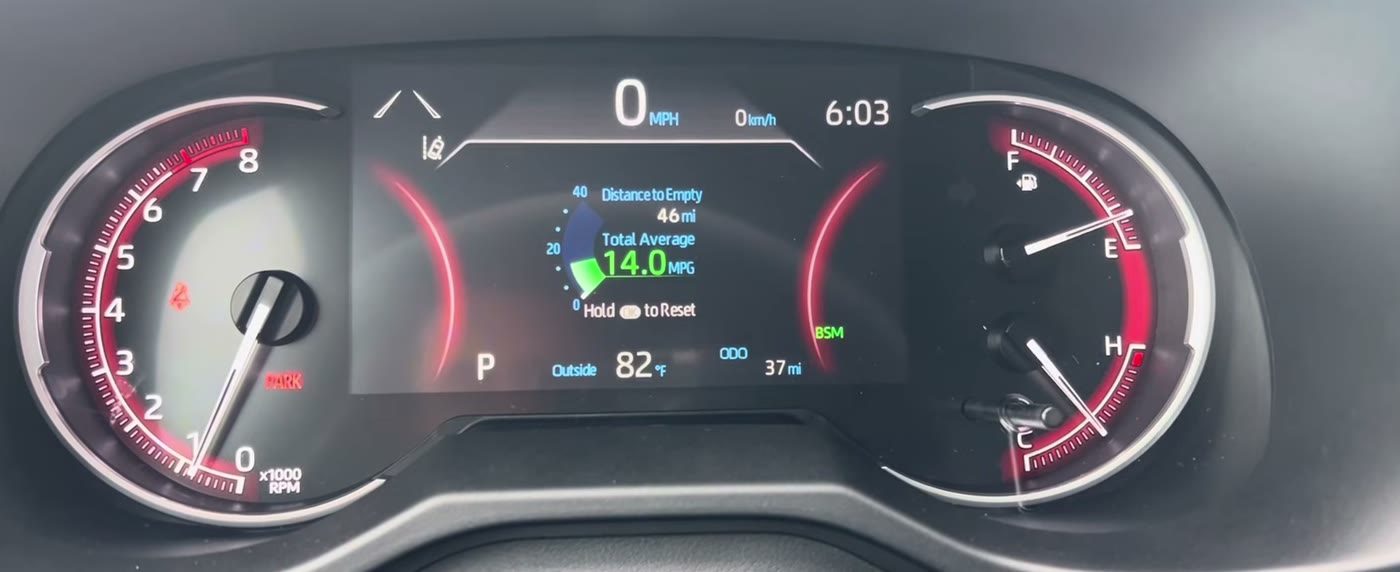
Here's the 7-inch gauge screen in a 2025 RAV4 with Meter Type set to Digital, so the speed shows as a big number across the top of the middle screen and the real dials stay on each side, from Matt's Toyota Reviews' video.
So the 7-inch screen has a real setting for the digital speedometer, called Meter Type. And the Meter Type menu didn't change from 2019 to 2025, so these steps work on every 7-inch RAV4, including the Prime.
- Press the left or right arrow until the gear icon is selected along the bottom of the screen. The gear icon is the settings tab.
- Press the down arrow until you reach Settings. Settings is below the safety systems and Vehicle Settings in the list. Then press and hold OK to open Settings. A quick press won't open Settings.
- Press down to Meter Type and press OK. Meter Type switches between Analog, the round speedometer, and Digital, the big number.
- Press the back button to leave the menu.
With Digital picked, you'll see a big speed number in the middle of the 7-inch screen. The real dials stay on each side, with the hybrid power meter or tachometer on one side and fuel on the other. And to go back to the round speedometer, you'd just repeat the steps above and pick Analog. From the factory, Toyota sets Meter Type to Analog.
How to change the speedometer layout: 2023 to 2025 with the 12.3-inch screen
So on the 12.3-inch screen, your speed is always a number in the middle of the screen, on every layout. Meter Type just decides whether round dials sit around that number.
- Press and hold OK for about 2 seconds. White brackets appear around the middle area of the screen. The brackets mean you're in edit mode.
- Press up or down until the middle area shows the gear icon, which is settings. Then press OK.
- Press up or down to Meter Settings and press and hold OK. Toyota's manual just calls the Meter Settings list Settings.
- Choose Meter Type and press OK. The choices show up as small pictures, not words, and the picked one turns blue. These are the three layouts:
- Two dials: a power meter or tachometer dial on the left, a speedometer dial on the right, and the speed number in the middle.
- One dial: a single round dial around the speed number in the middle.
- Fully digital, no dials: the speed number in the middle, with information panels on both sides.
- In the same Meter Type menu, you can turn the widgets along the bottom on or off.
- If you like, pick Meter Style to change the color theme. And with the one-dial layout picked, Dial Type lets you make that dial a speedometer or the hybrid power meter.
- Press the back button to save and leave.
And to go back, you'd follow the same steps and pick another layout. Or you can pick Default Settings, then Yes, to put every gauge screen setting back to the factory setup.
How to pick what the left and right areas show on the 12.3-inch screen
So the 12.3-inch screen saves three pages, numbered 1, 2 and 3 along the bottom. You press left or right to flip between the three pages. And each page has its own left, middle and right area.
- Press left or right to the page number you want to change.
- Press and hold OK for about 2 seconds, until the white brackets show up.
- Press left or right to move the brackets to the left, middle or right area.
- Press up or down to choose what that area shows.
- To add an item that isn't in the list, keep pressing left in the left area, or right in the right area, past the last item. A checklist appears. Press OK on each item you want, so it gets a blue check.
- Press the back button to save.
Now something to note is that most of the extra items on that checklist are unticked from the factory. So if you can't find something like tire pressures or the energy monitor (a picture of where the power is flowing, between the engine, the hybrid battery and the wheels), the item is probably just unticked. And the middle area only offers driving support, settings and warnings, or nothing.
How to get the big speed number: 2026 RAV4
So the 2026 RAV4 is the easiest of the four. You just press left or right on the steering wheel's four-way pad, and the whole gauge screen layout changes. The six layouts come in this order:
- Simple: just the digital speed and the basics.
- 1 dial.
- 2 dials.
- Navigation: a map in the middle, on RAV4s equipped for it.
- Driving support system information.
- ECO.
For the plainest big speed number, keep pressing left or right until you reach Simple.
- To hide 2026 layouts you never use, go to the gear icon, then Meter Setting, then Meter Type. You can switch each of the six layouts on or off there. And you can turn the widgets on or off for each layout.
- To change what the left panel shows on the 2026, press up or down.
- To choose which items are in that left panel list, go to the gear icon, then Displayed information. You can turn items on or off there, like Fuel Economy, Eco Score, Navigation, Audio, TRIP A, TRIP B, Energy Monitor, Tire Pressure and AWD.
And if you bump the arrows by accident and lose the layout you liked, don't worry. Just press left or right through the six layouts until your old one comes back.
How to make the RAV4 gauge screen brighter or dimmer
So a gauge screen that's too dim in daylight is one of the most common complaints, and owners have it on both the 7-inch and the 12.3-inch screens. The good news is that most of the fix comes down to knowing how the brightness control works.
Where the brightness control is
- On 2019 to 2025 RAV4s, the brightness control is a small thumbwheel low on the dash, left of the steering wheel. The thumbwheel sits in the row of switches next to the mirror control. Roll the thumbwheel up for brighter and down for darker.
- On the 2026, the brightness control is a rocker switch in the same spot, low on the dash left of the steering wheel. Press the top of the rocker to brighten and the bottom to darken.
The click near the top of the brightness wheel
Now this is the part most owners miss. On 2019 to 2025 RAV4s, the brightness wheel has a click, called a detent, just before the top. So if the gauge screen still seems dim with the wheel all the way up, roll the wheel past that click for full brightness.
But keep in mind that past the click, the screens stay at full daytime brightness all the time, even at night with the headlights on. So past the click helps a lot in bright sun, but it can be glaring at night. Two owners found their center touch screen wouldn't dim at night for exactly this reason. This detail comes from owners, not Toyota's manual. And I haven't found whether the 2026 rocker switch works the same way.
Why the RAV4 remembers two brightness levels
So the RAV4 keeps a day level and a night level, and you set each one separately. Basically, the RAV4 uses the day level when the tail lights are off, or when the tail lights are on but it's bright outside. And the RAV4 uses the night level when the tail lights are on and it's dark outside.
So turning the brightness wheel up at night doesn't change the daytime level. If the gauge screen is too dim during the day, you'd want to set the brightness again in daylight.
Keep the light sensor on top of the dash clear
And the RAV4 decides whether it's bright or dark outside with a light sensor on top of the dash, next to one of the vents toward the front. So if a dash mat, papers or anything else covers the light sensor, the RAV4 thinks it's dark and keeps the screens dim. One owner's screens stayed dim because face masks were piled on the dash.
If the RAV4 gauge screen is still too dim
So owners who asked their dealer about a dim gauge screen were told there's nothing the dealer can do. But one owner found that on sunny days, the large digital speed number was the one thing he could still read clearly. So if you struggle to read the gauge screen in the sun, switching to the big digital speed number is the first thing I'd try.
Do polarized sunglasses black out the RAV4 gauge screen?
So for the most part, no. Five 2019 to 2025 RAV4 owners who wear polarized sunglasses said the gauge screen and center screen look fine. The stories about polarized lenses blacking out the gauge cluster come from the older RAV4, from before 2019.
What polarized sunglasses do dim is the head-up display. Basically, the head-up display is the speed and other information projected onto the windshield, on RAV4s that have one. One owner says polarized lenses make the head-up display roughly half as bright. So if your gauge screen does fade at some angle, I'd try tilting your head a bit, or try a different pair of sunglasses.
Turn arrows from Apple Maps and Google Maps on the gauge screen
So on newer RAV4s, the gauge screen can show turn arrows from your phone's maps. This works through Apple CarPlay or Android Auto, which put your phone's apps on the RAV4's touch screen. Some owners love the turn arrows, and some want them gone.
- On 2023 to 2025 RAV4s with the 7-inch or 12.3-inch screen, turn arrows pop up from Apple Maps and Google Maps on CarPlay, and from Android Auto. You get arrows and text, like the next street name, but never a map on 2023 to 2025 gauge screens.
- On 2019 to 2022 RAV4s, owners with the 7-inch screen have seen turn arrows from Google Maps on Android Auto. An owner with the 4.2-inch screen didn't get them. So treat turn arrows on a 2019 to 2022 as a 7-inch screen thing, and even then not on every RAV4.
- On the 2026, the Navigation layout can show a map right on the gauge screen, on RAV4s equipped for it. One 2026 owner using Google Maps on Android Auto had the map on his gauge screen for a while. Then the map stopped, and he only got text like "Turn Left on Jones." As of October 2026, nobody has found a fix for the missing 2026 map.
How to turn the turn arrow pop-ups off: 2023 to 2025
- Go to the gear icon and open the gauge screen's Settings, the same menu where you found Meter Type.
- Choose Pop-Up Display.
- Switch TbT Navigation to Off. TbT stands for turn by turn. One owner found Pop-Up Display listed under Vehicle Settings instead, so if you don't see Pop-Up Display, check there.
And if you only want one turn arrow gone, pressing the back button clears that pop-up until the next turn. To turn the arrows back on, you'd switch TbT Navigation back to On.
Now if you'd rather keep turn arrows on screen the whole time, you can. On the 12.3-inch screen, pick the navigation item for a left or right area. On the 7-inch screen, pick the navigation page.
And on the 2026, I haven't confirmed a switch just for turn pop-ups. But you can hide the whole Navigation layout under Meter Type, using the steps in the 2026 section above.
How to see the tire pressure for each tire, by year
So whether your gauge screen shows the pressure in each of the four tires depends mostly on the year. Toyota's older manual only says the readout is on RAV4s "with tire inflation pressure display function," so this table comes from owner reports.
| RAV4 year | Shows each tire's pressure? | Where to find tire pressures |
|---|---|---|
| 2019 and 2020 (US) | No, just the low tire pressure warning light | In the Toyota app, with a paid Connected Services subscription |
| 2021 | Some 2021s. Primes show tire pressures, and some other 2021 owners say theirs don't. | Look through the tabs with the left and right arrows |
| 2022 | Yes, owners report all four pressures | Look through the tabs with the left and right arrows |
| 2023 to 2025, 7-inch | Yes | Press right until the car icon tab is picked, then press down |
| 2023 to 2025, 12.3-inch | Yes | Add tire pressure to a left or right area. You may need to tick tire pressure on the checklist first. |
| 2026 | Yes | Turn on Tire Pressure under Displayed information, then press up or down until TPWS shows in the left panel |
If you have a 2019 or 2020, my Toyota app guide covers what Toyota's Connected Services cost.
- Tire pressures can show "--" for a few minutes after you start the RAV4. The readings can also lag after you add air, so just drive a short distance.
- The readings change with temperature, so the gauge screen may not match your handheld tire gauge exactly.
Recall 25TA08: the blank 12.3-inch gauge screen
So if you have a 2023 to 2025 RAV4 with the 12.3-inch screen, it's worth checking whether your RAV4 is part of recall 25TA08. NHTSA, the US government's road safety agency, lists the same recall as 25V-595. Toyota also uses the number 25TB08 for this recall.
What recall 25TA08 is
Basically, an error in the gauge screen's software at startup can leave the 12.3-inch screen blank. And a blank gauge screen means you may not see your speed, or the brake and tire pressure warning lights. Some owners online blame a memory chip that gets written to too often, but that's their theory, not Toyota's.
Which RAV4s recall 25TA08 covers
- 2023 to 2025 RAV4 and RAV4 Hybrid with the 12.3-inch screen.
- 2023 to 2024 RAV4 Prime with the 12.3-inch screen, and NHTSA's list also includes the 2025 RAV4 Plug-in Hybrid.
- Only certain VINs are included. RAV4s with the 7-inch screen aren't part of recall 25TA08.
How to check your RAV4 for recall 25TA08
- Find your VIN. The VIN is your RAV4's 17-character vehicle identification number. You can read the VIN through the windshield on the driver's side of the dash, or on the driver door jamb.
- Enter the VIN at toyota.com/recall or nhtsa.gov/recalls.
- Or check the Toyota app. Several owners first saw recall 25TA08 in the Toyota app.
And keep in mind your RAV4 can be on the recall even if the gauge screen has never gone blank.
What the dealer does for recall 25TA08, and how long it takes
So the recall 25TA08 fix is free. The dealer inspects the gauge screen, then reprograms the gauge screen or replaces it. Toyota says the visit takes about 3 hours. Owners report anywhere from 3 hours to more than 5 hours, so I'd plan on dropping the RAV4 off for the day. The RAV4 can't get this fix through an over-the-air software update, meaning one sent to the RAV4 wirelessly, so you do have to go to the dealer.
Now for a while, dealers were telling owners "no remedy available," because Toyota rolled the fix out in phases. Toyota made the fix available for gas and hybrid RAV4s on May 7, 2026. Some RAV4 Primes needed a replacement gauge screen or an inspection first, so some Prime owners waited on parts.
- If your gauge screen is blank right now, Toyota says to call your dealer right away. And if you can't drive the RAV4, the dealer will arrange to pick the RAV4 up.
- After the fix, the recall alert in the Toyota app can stay for one to two weeks before Toyota clears it.
- In California, Toyota's letter says the state won't renew your registration until recalls like this one are done.
And something to note is that not every blank screen is this recall. A center touch screen that goes black at a cold start is a different part. And some 2023 Primes had gauge screens that only went blank in cold weather, which owners think is a separate problem. So if your screen blanks out, it's still worth having the dealer look.
What happens after you change the gauge screen
- Your gauge screen settings stay after you turn the RAV4 off and back on. I haven't found any owner whose Meter Type reset itself on a restart.
- Recall 25TA08 resets the 12.3-inch layout, as covered in the recall section above. And on the 2026, one owner says some settings changed after an over-the-air update.
- Default Settings resets everything on purpose. So if you've lost your layout and can't get it back, Default Settings is your undo button.
- Drive mode changes the gauge screen's colors. Eco, Normal, Sport and Trail Mode each change the background color. Trail Mode shows a rocky background, and one 2025 owner thought the rocks were smoke or a fault.
- In extreme cold, Toyota says the gauge screen may respond slowly.
Common RAV4 gauge screen problems and how to fix them
- You can't find Meter Type. If you have the 4.2-inch screen, Meter Type doesn't exist. Use the speed page under the leaf icon instead.
- The settings menu won't open. Make sure you're parked, and press and hold OK rather than giving OK a quick press.
- The 7-inch information area is blank, or Meter Type won't show. MID OFF may be turned on. One 2022 Prime owner couldn't see Meter Type until MID OFF was off. Go to Settings, then MID OFF, and switch MID OFF off. And for one owner, just pressing an arrow brought the screen back.
- The 12.3-inch screen won't offer tire pressure, energy monitor or AWD. Those items are probably unticked. Keep pressing left in the left area, or right in the right area, until the checklist appears, then tick the item.
- You can't find tire pressures on the 7-inch screen. Two owners just hadn't scrolled far enough. One had to press the right arrow two places, then use the up and down arrows.
- The speed shows in km/h instead of mph. Both units show, and the Units setting in the same Settings menu decides which unit shows as the big number.
- A 2026 layout changed by accident. Press left or right through the six layouts until your old one comes back.
- The 12.3-inch gauge screen goes black. Check your VIN for recall 25TA08.
Tips, warnings and what other sites get wrong
- If you can't read the speed in the sun, switch to the big speed number first. That means Digital on the 7-inch, the speed page on the 4.2-inch, or Simple on the 2026.
- Roll the brightness wheel past the click for daytime, but keep in mind the screens won't dim at night past the click.
- Set day and night brightness separately, because the RAV4 remembers two levels.
- Keep the top of the dash clear over the light sensor.
- Take a photo of your 12.3-inch layout before any dealer software work.
- Before you leave edit mode on the 12.3-inch screen, put back the item you want in each area. One owner warns that it's easy to leave the wrong item showing.
- Don't press and hold OK on Set Pressure while you're exploring the menus.
Now a few things other sites commonly get wrong. Some sites say only the Adventure, TRD Off-Road, Hybrid XSE and Limited can show a digital speedometer. That list leaves out the Prime, every 2023 to 2025 trim with the 7-inch screen, the 12.3-inch screen, the 2026, and the 4.2-inch speed page.
And Toyota's own manual shows the 12.3-inch Meter Type choices as pictures only. The manual never says which layout comes from the factory, or that most of the extra items start unticked. So if the manual left you confused, that's why.
Buddy's take
So ultimately, getting the big speed number comes down to knowing which gauge screen you have. On the 4.2-inch, it's the speed page under the leaf icon. On the 7-inch, it's Settings, then Meter Type, then Digital. On the 12.3-inch, the speed number is always in the middle. And on the 2026, it's the Simple layout.
For me personally, if the gauge screen ever looks too dim, I'd switch to the big speed number first. Then I'd roll the brightness wheel past the click. And with a 2023 to 2025 12.3-inch screen, I'd check your VIN for recall 25TA08. Then take a photo of your layout before the dealer visit.
Videos worth watching about the RAV4 gauge screen
And if you'd like to see these menus in action, here are the clearest videos I found. You can play each video right here on the page, and under each video, I've put a quick summary of what the video covers.
A full tour of the 7-inch gauge screen on a 2025 RAV4, button by button.
- The steering wheel switches: Left and right go through the tabs along the bottom, and up and down go through the pages in each tab.
- The pages: He goes through fuel economy and distance to empty, the eco indicator, the compass, the lane and cruise page, audio, tire pressures, AWD, and trip distance and time.
- Meter Type: In the settings tab, he presses and holds OK on the instrument settings to reach Meter Type and switch between digital and analog. The same menu has units, pop-ups, MID off and default settings.
- The ODO TRIP button: A press goes from the odometer to Trip A to Trip B, and holding the button for a few seconds resets the trip.
A walk through setting up the 12.3-inch screen on a 2025 RAV4, which he says applies to 2023 and newer RAV4s with the newer multimedia system.
- Edit mode: Press and hold OK for the brackets, then left and right move between areas, and up and down change what each area shows.
- The hidden checklist: Keep going past the end of a side's list to reach the checklist of extra items, where a blue check means the item is on.
- Meter Type: Under Meter Settings, he picks dual, single or fully digital, and turns widgets on or off. He says dual is the factory setting.
- Meter Style and Dial Type: Meter Style has smart, casual, tough and sporty. Dial Type only shows with the single dial and switches that dial between tachometer and speedometer.
- Resetting: Default Settings, then Yes, puts everything back, and the back button saves.
An owner sets up the three pages of the 12.3-inch screen on his 2023 RAV4 Prime.
- Getting into edit mode: Press left or right to pick the page number, then hold OK for about 2 seconds until white lines outline the middle area.
- Widgets: The widgets, with mpg on the left and audio on the right, can only be turned on or off, not changed.
- The checklist: At the far end of each side's list is a checklist, and unticked items don't show up as choices at all.
- His setup: Drive info on the left, settings in the middle and tire pressures on the right. Page 2 has Trip A and AWD.
- His mistake to avoid: While poking around, he reset the tire pressure system by accident, so the readings went blank until he drove. He also says to put back the item you want before you leave edit mode.
So hopefully this helps you get the big speed number, and the rest of your gauge screen, set up exactly the way you want it.
Have a question about “How to get the big digital speedometer on your RAV4, and set up the gauge screen”?
Ask it here. Every question comes to me first. I'll answer as many as I can, and when I answer one, I'll add the question and my answer to this page so other RAV4 owners can see it too. I don't ask for your email, so check back on this page for the answer.
More owner guides
How to stop the RAV4 360 camera from popping up, and how to use its views
The RAV4's 360-degree camera can take over your map every time you slow down. Here's how to stop the 360 camera from popping up on the 2019 to 2025 and 2026 RAV4, and how to use each camera view when you actually want it.
How to take your RAV4 through an automatic car wash
A short checklist of what to turn off before a conveyor car wash, and where each button is. Plus how to keep a 2019 to 2025 or 2026 RAV4 in neutral from start to finish.
How to set up and use the RAV4 digital rearview mirror
What the lever and each button on the RAV4 digital rearview mirror do, and how to get a clear camera picture with bifocals or at night. I also show how to program the HomeLink garage door buttons on the same mirror.
Where the RAV4 heated steering wheel, wiper de-icer and heated seat buttons are, and how to use them
The heated steering wheel and wiper de-icer buttons on a RAV4 are easy to miss. Here's exactly where they are on every year from 2019 to 2026, what each light means, and which ones you have to press again every drive.
How to use the RAV4 memory seat, link it to your key, and fix a seat that beeps but won't move
The RAV4 memory seat saves two driver's seat positions to the 1 and 2 buttons on the driver's door. Here's how to save a position, tie it to your key fob and fix the most common memory seat problem. And here's how to stop the seat moving by itself, on 2019 to 2025 and on the 2026.
What "PKSB Unavailable" means on your RAV4, and how to fix it
What the PKSB Unavailable message and the flashing PKSB OFF light mean, how to clear the message yourself, the right reset after a 12-volt battery disconnect, and when it's time to see a Toyota dealer.
How to use your RAV4's power liftgate and hands-free kick sensor
Which RAV4s have a power liftgate and a kick sensor, and how to turn each one on or off on every gauge screen. Plus how to kick so the hatch actually opens, and what to do when the liftgate stops halfway and beeps.
How to use the RAV4 rain-sensing wipers, and which way the sensitivity ring turns
The RAV4 rain-sensing wipers start on their own when rain hits the windshield. Here's every wiper stalk position and which way to turn the sensitivity ring. I also cover when to turn AUTO off, and how to fix wipers that are slow in mist or stop working after a new windshield.
The best places to learn about your RAV4 and find other RAV4 owners
When you own a RAV4, you start wondering where other owners hang out and where to get real answers. Here's the top pick for every topic, plus the other good options and the catch with each one.
The Toyota app on a RAV4: what's free, what costs money, and what to keep
When you link your RAV4 to the Toyota app, it walks you through a lot of trials and paid plans. Here's what each one does, what it costs when the trial ends, and what you already get free.
How to stop the Toyota welcome screen, and whether you need to link your RAV4
The Toyota welcome screen on your RAV4 keeps asking you to link the car to the Toyota app. Here's how to make it go away for good, and what you give up if you never link it.
How to turn off your RAV4's automatic parking brake (PKSB)
The switch that stops your RAV4 from slamming on the brakes while you park is not the same switch as the parking beeps. Here's exactly which switch does what, where to find the PKSB switch on your RAV4, and how to turn PKSB back on.
- Toyota's 2023 to 2025 RAV4 Hybrid owner's manual (OM0R102U): 7-inch gauges, ODO TRIP and brightness wheel p.93 to 98. 12.3-inch layouts, day and night brightness and ODO TRIP p.99 to 104. 7-inch screens and settings p.105 to 114 (Meter Type p.113, Pop-Up Display and MID OFF p.114). 12.3-inch areas, editing and settings p.115 to 125. Tire pressure display and reset p.413 to 415. Settings tables and factory settings p.519 to 522.
- Toyota's 2019 to 2022 era RAV4 owner's manual (OM0R024U): 4.2-inch screen and brightness p.82 to 84. 7-inch screen p.85 to 88. Screens and settings p.89 to 98 (4.2-inch speed page p.91, Meter Type p.97). Tire pressure display p.584. The hybrid manuals OM0R025U and OM0R058U have the same speed page and Meter Type setting.
- Toyota's 2026 RAV4 Hybrid owner's manual (OM0R032U): layouts and brightness rocker p.91 to 96. Areas and the six layouts p.96 to 98. Screens and settings p.99 to 106 (Displayed information p.104). Settings tables p.616 to 618. Page numbers are the printed page numbers.
- Toyota's 2021 RAV4 brochure and 2023 and 2025 RAV4 SourceBooks, for which trims have each gauge screen.
- Recall 25TA08 (NHTSA 25V-595): NHTSA recall summary, Toyota's owner letter, and Toyota's dealer notices RCMN-25V595-4420 and RCMN-25V595-2686. VIN lookup at toyota.com/recall and nhtsa.gov/recalls.
- RAV4World owner threads: instrument cluster display too dim, dim display, instrument panel light control, polarized sunglasses, digital speedo in XSE, digital speedometer on a 2019, changing the speedometer on a 2022 Prime SE, digital mph, lost the original speedometer screen, instrument cluster help, instrument panel doing weird stuff, tire pressures won't display, tire pressure display on a 2024 LE, tire pressure display on a 2021 Prime, turn off directions on the dashboard, disable Google Maps directions in the dash, navigation on the cluster from Android Auto, 2026 Google Maps on the driver's display, blank screen recall, owners who had 25TA08 done, trouble with 25TA08, recall 25TA08 app alert, RAV4 Prime screen recall and display goes out in the cold.
- Videos from Matt's Toyota Reviews, ToyotaDuo and Buco Bucolini, embedded above.
RAV Buddy is an independent fan site. We're not affiliated with or endorsed by Toyota. RAV4 is a trademark of Toyota Motor Corporation.